Remote support
Let the TradeMirrorly support team see your screen when you want help. Off until you switch it on; control and file transfer are separate switches.
Written for TradeMirrorly 1.5.0 · Updated

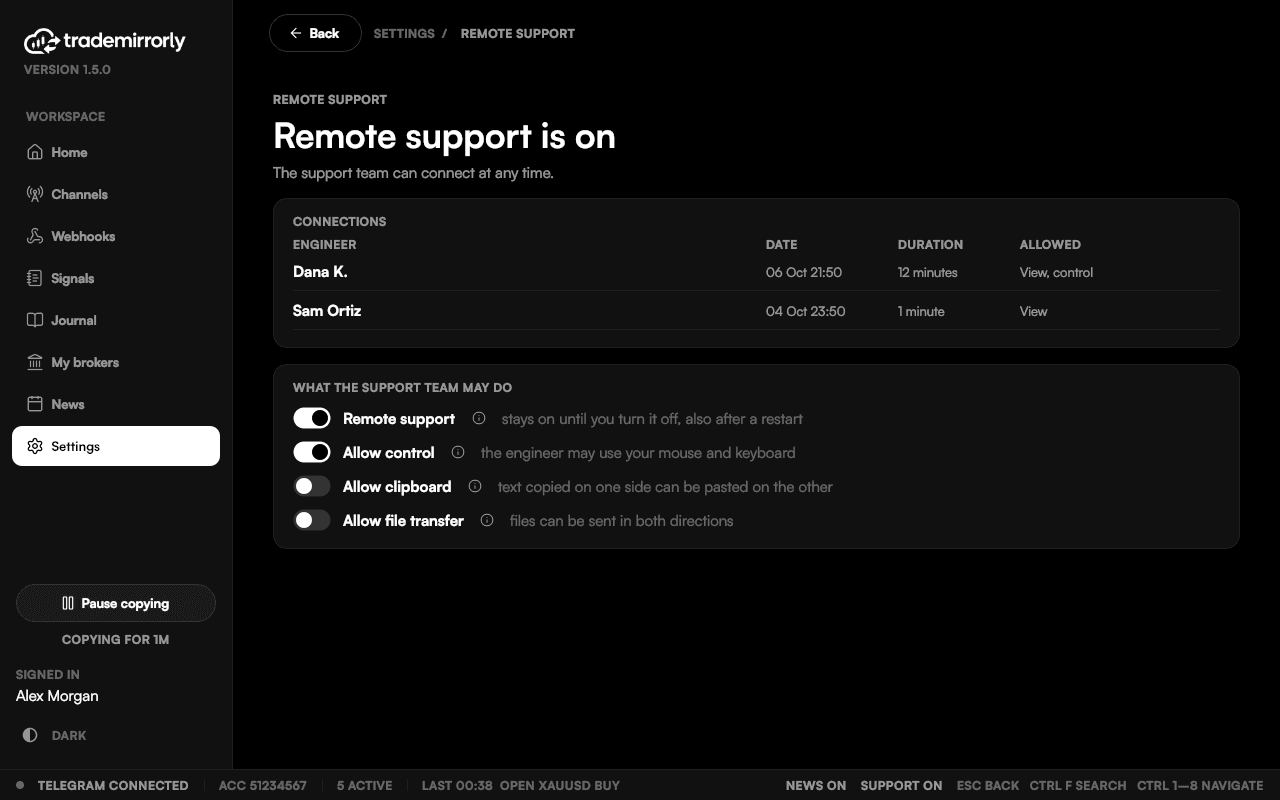
- Turn it on under Settings → Remote support. Nothing else is installed.
- Only the TradeMirrorly support team can connect: every connection is signed by TradeMirrorly.
- Mouse and keyboard control, the clipboard and file transfer are separate switches, off until you turn them on.
- While an engineer is connected, an amber banner names them; you're told when they connect and leave, and one click disconnects them.
- Every past connection is listed with the engineer's name.
- It stays on until you turn it off, also after a restart. Copying is never affected.
Try it on a demo account first
Monthly and yearly plans start with a 3-day free trial. Setup takes about 3 minutes.
More in this topic
Why wasn't my trade opened?
Signals says why a trade didn't open and what to do. The common reasons, from unknown symbols to closed markets, and the fix for each.
Nothing is copied: a checklist
When no signals are copied at all, check these in order: the pause switch, the channel switch, the account, the EA, then Signals.
License messages and what they mean
What 'already active on 2 of 2 devices', 'Copying is stopped', 'NOT LICENSED' and the EA's license messages mean, and the fix for each.
Updates
TradeMirrorly updates itself and the EA together at its daily restart. How a new version is found, checked and installed.