Sign in to Telegram
Scan a QR code with the Telegram app on your phone, or use your phone number. Two-step passwords work, and the session stays on your computer.
Written for TradeMirrorly 1.5.0 · Updated
With a QR code
- 1Open Telegram on your phone, then Settings → Devices → Link Desktop Device.
- 2Scan the QR code TradeMirrorly shows.
- 3If your Telegram has a two-step password, enter it.

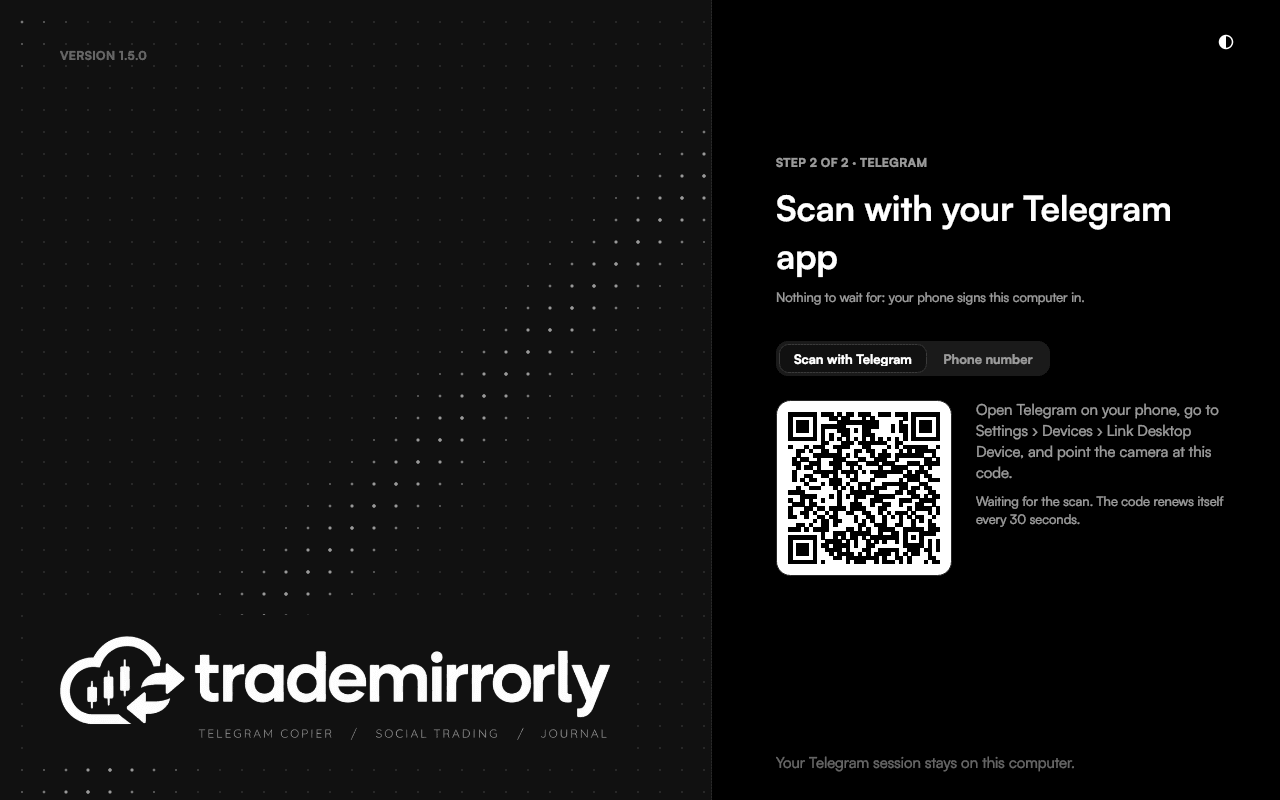
No login code has to arrive anywhere, so this is the fastest way in.
With your phone number
Enter the number in international format, for example +15550001234. The app says where Telegram sent the code (to your Telegram app on another device, by SMS or by a call) and offers another way as soon as Telegram allows. Two-step passwords work here too.
Your session
- The session stays on your computer and is never uploaded.
- If Telegram ends the session, the app says so and opens the sign-in screen. Your channels and settings stay as they were.
- TradeMirrorly never shows you online.
Try it on a demo account first
Monthly and yearly plans start with a 3-day free trial. Setup takes about 3 minutes.
More in this topic
Activate your license key
Paste your TM-XXXX-XXXX-XXXX key once per computer: where to find it, and what to do when every computer seat is in use.
Copy channels, groups, topics and bots
Switch on the Telegram chats you want copied, per trading account, and read each channel's status, last signal and 14-day activity.
Install the EA in MetaTrader 4 or 5
The app finds every MetaTrader 4 and 5 on your computer, installs the TradeMirrorly EA with one click, and opens the terminal with it running.
Add a TradeLocker account
Add a TradeLocker account, demo or live, with your email, password and server. The app trades it itself, with no EA and no MetaTrader.