Settings per channel
Every channel can trade by its own rules. How Essentials, All settings, saving and resets work, and when the EA starts using them.
Written for TradeMirrorly 1.5.0 · Updated
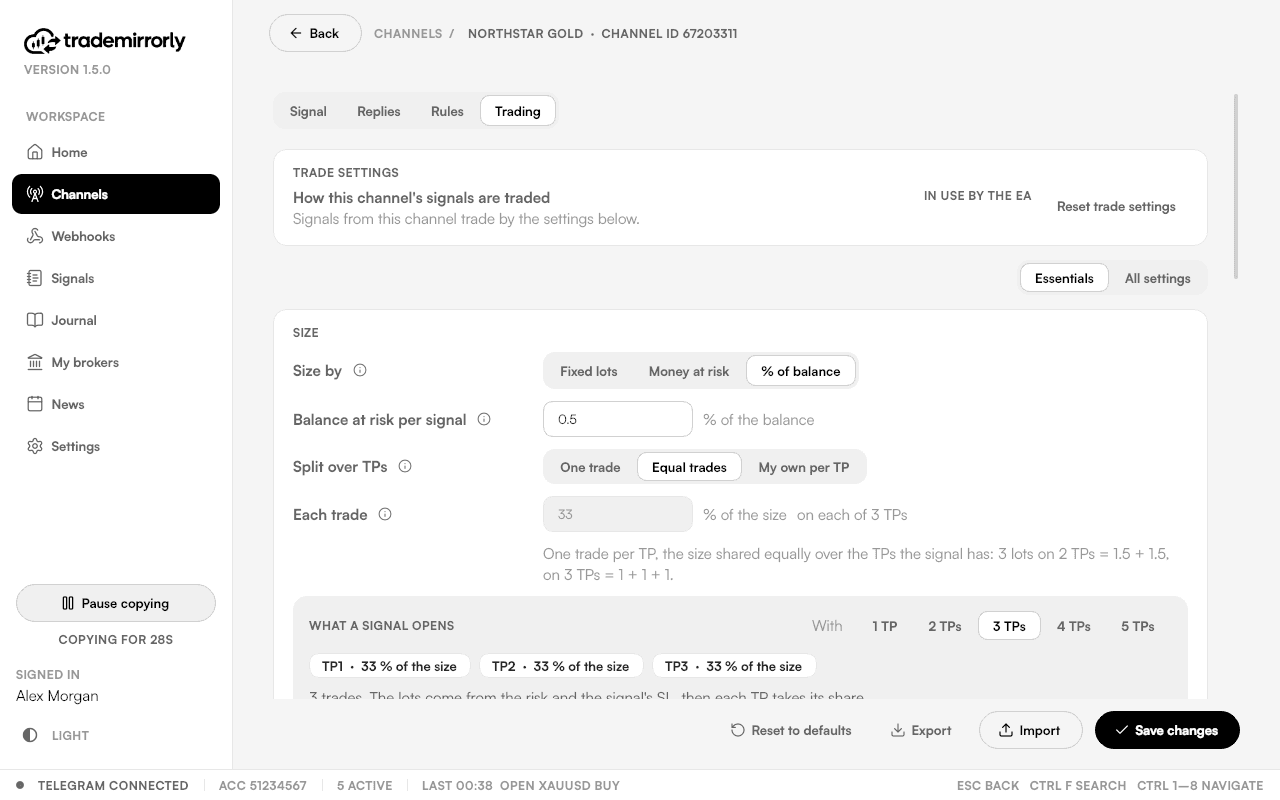
Each channel has its own trade settings, under Configure → Trading, set in the app instead of once in MetaTrader. TradeLocker and Match-Trader accounts use the same settings.

Finding a setting
- Essentials shows the everyday settings, and anything you changed.
- All settings shows every one.
- Fields show only when they matter: the trailing distances appear once trailing is on.
Saving
The EA uses the settings a few seconds after you save, and the tab says when it has. A channel you haven't set trades by the defaults; until you save any channel of an account, the EA runs on its own inputs in MetaTrader.
Starting over
- Reset trade settings puts this tab back to the defaults.
- Reset to defaults, at the bottom of the page, starts the whole channel over, its words included.
- Nothing changes until you save.
Try it on a demo account first
Monthly and yearly plans start with a 3-day free trial. Setup takes about 3 minutes.
More in this topic
Trade size and TP split
Set how big each signal is, in lots, money at risk or % of the balance, and how it splits over the TPs, with a preview of what a signal opens.
Entry, SL and TP
Market or pending entry, the signal's SL and TPs or your own, risk:reward targets, shifts and reverse: how each setting changes a trade.
Breakeven, profit lock and trailing
Move the SL to entry automatically, lock profit as TPs are hit, and trail the price: each one a switch you set per channel, off until you turn it on.
Trading hours, limits and the daily loss limit
Copy only inside your hours, cap open trades overall and per symbol, close opposite trades, and stop new trades after the day's loss you set.